|
|


Website Download Output Filters in Website Scan
Website scan output filters (also known as list filters) allows you to define which pages you want listed in the sitemap section after website crawls in our website download software.
Note: We have a video tutorial:
Even though the video demonstration uses TechSEO360 some of it is also applicable for users of A1 Website Download.
Even though the video demonstration uses TechSEO360 some of it is also applicable for users of A1 Website Download.
Website Download Website Output Filters Overview
Output filters are usually applied just after website crawling has finished.
This means you can have website scanner crawl pages that are not necessarily included in final output.
You can use output filters instead or in conjunction with
webmaster filters
(robots.txt, noindex, nofollow etc.)
and
analysis filters.
-
Change behavior of how and when these filters get applied by changing:
- Older versions: Scan website | Crawler options | Apply webmaster and output filters after website scan.
- Newer versions: Scan website | Output filters | After website scan stops: Remove URLs excluded by "output filters".
-
Exclude URLs in both output filters and analysis filters
to minimize
crawl time, HTTP requests and memory usage.
- Note: For changes in output filters to take effect, you will need to scan your website again. The reason is that it is the website crawler that tags all found URLs with flags such as excluded by output filter.
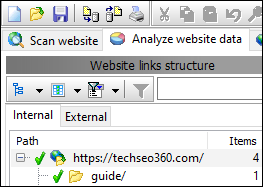
Limit Internal URLs to Those in These Directories
- Links encountered by crawler are normally grouped in categories internal and external.
- With this option, you can decide which pages belong in the internal category.
List Files With File Extension in Output
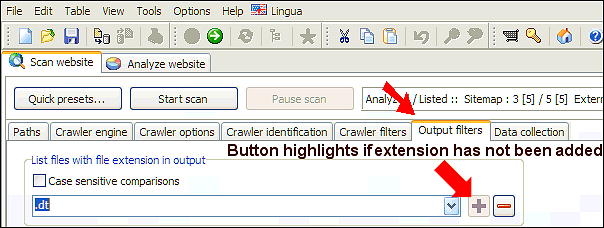
URLs with file extensions not found in the list will not be included
in the website scan results.
If you remove all file extensions in the list, the file extension list filtering accepts all files.
If you remove all file extensions in the list, the file extension list filtering accepts all files.
Do Not List URLs That Match Paths / Strings / Regex
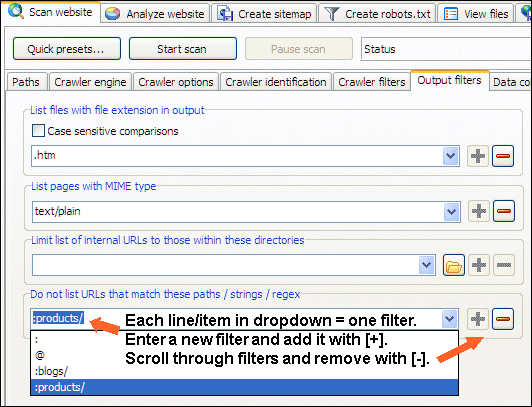
Excluding URLs that fully or partially match a text string, path or regular expression pattern from output is a way to have the data returned narrowed down when the tool has finished crawling the website scanned.
You can download a project file demonstrating various output filters.
From above examples it can be seen that:
To add list filter item in dropdown: Type it and use the [+] button.
To remove list filter item in dropdown: Select it and use the [-] button.
You can view more information about the user interface controls used by A1 Website Download.
- Strings:
- blogs matches relative paths that contain "blogs".
- @ matches relative paths that contain "@".
- ? matches relative paths that contain "?".
- Paths:
- :s matches relative paths that start with "s" such as http://www.microsystools.com/services/ and http://www.microsystools.com/shop/.
- :blogs/ matches relative paths that start with "blogs/" such as http://www.microsystools.com/blogs/.
- Subpaths:
- :blogs/* matches relative paths excluding itself that start with "blogs/" such as http://www.microsystools.com/blogs/sitemap-generator/.
- Regular expression:
- ::blog(s?)/ matches relative paths with regex such as http://www.microsystools.com/blogs/ and http://www.microsystools.com/blog/.
- ::blogs/(2007|2008)/ matches relative paths with regex such as http://www.microsystools.com/blogs/2007/ and http://www.microsystools.com/blogs/2008/.
- ::blogs/.*?keyword matches relative paths with regex such as http://www.microsystools.com/blogs/category/products/a1-keyword-research/.
- ::^$ matches the empty relative path (i.e. the root) with regex such as http://www.microsystools.com/.
You can download a project file demonstrating various output filters.
From above examples it can be seen that:
- : alone = special match.
- : at start = paths match.
- : at start and * at end = makes paths into subpaths match.
- :: at start = regular expression match.
- None of above, normal string text match.
To add list filter item in dropdown: Type it and use the [+] button.
To remove list filter item in dropdown: Select it and use the [-] button.
You can view more information about the user interface controls used by A1 Website Download.
Add URLs to Output Filters The Easy Way
If you do not need any of the advanced options for Scan website | Output filters,
you can find some convenience functionality in the Table menu that allows you to easily exclude URLs.
osysThis is useful in cases where you need to crawl a website multiple times.