|
|


A1 Website Download Portable Mode and Data Location
It is possible to configure where and how website download stores data and project files. If you want to run A1 Website Download in portable mode, you should read this.
Installation and Website Download Data Files
With new program versions of A1 Website Download, the software will install and configure itself in a way that always works - but still allow you to override where program data gets stored later on.
On older versions of Windows and A1 Website Download, you will get prompted to select where data should be stored.
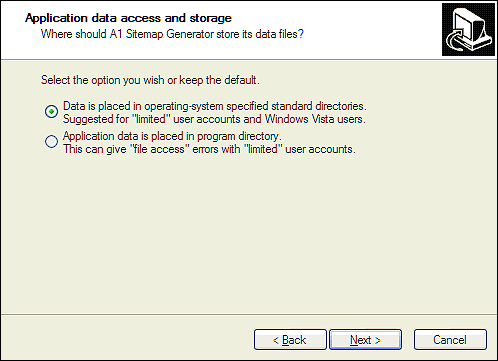
Newer operating systems default to only allow administrator accounts write files to disk. Only a few specific directories can be written to if the operating system / software is running under a limited user account. The installation will by itself default to the best choice depending on e.g. operating system. It will also try to detect if you are installing over an old version of the program and default to the old setting. You can read more about file permissions and errors.
You can always see where website download data is stored in the About dialog.

On older versions of Windows and A1 Website Download, you will get prompted to select where data should be stored.
Newer operating systems default to only allow administrator accounts write files to disk. Only a few specific directories can be written to if the operating system / software is running under a limited user account. The installation will by itself default to the best choice depending on e.g. operating system. It will also try to detect if you are installing over an old version of the program and default to the old setting. You can read more about file permissions and errors.
You can always see where website download data is stored in the About dialog.
Change Website Download Data Location
Locate the file muc.ini stored in the program installation directory. Open it using a text editor.
You can configure where program data is stored by editing the key DataAccess with valid values being app and os.
If you change from app to os following happens:
If you change from os to app, you will have to move the relevant files yourself.
To run A1 Website Download in portable mode, you will need to do the following steps:
If key DataAccess is set to app, you can set DataUserPath to override the data directory path.
Note: If you on newer Windows versions install A1 Website Download into C:\Program Files you can usually not use the app storage mode. If you do so, Windows VirtualStore will redirect all file access outside standard user directories to a directory similar to this: %LOCALAPPDATA%\VirtualStore\Program Files\%software%.
You can configure where program data is stored by editing the key DataAccess with valid values being app and os.
- All users access the same application data = app.
- All users access their own application data = os.
If you change from app to os following happens:
- Program will first time it starts try to copy all relevant files from old directories to the new ones (including program setup and projects).
- The files copied will also continue to stay in their original location as an extra precaution and backup.
- Program will from this point on use these new directories to load and save data from.
If you change from os to app, you will have to move the relevant files yourself.
To run A1 Website Download in portable mode, you will need to do the following steps:
- Move the entire application directory to portable media such as CD / DVD and USB flash disk drives.
- Ensure that the DataAccess setting is set to app.
If key DataAccess is set to app, you can set DataUserPath to override the data directory path.
Note: If you on newer Windows versions install A1 Website Download into C:\Program Files you can usually not use the app storage mode. If you do so, Windows VirtualStore will redirect all file access outside standard user directories to a directory similar to this: %LOCALAPPDATA%\VirtualStore\Program Files\%software%.
Configuration Examples
Some example configurations of the muc.ini file:
- This uses Windows defaults for data:
[Misc]
DataAccess=os - Places data in application subfolders:
[Misc]
DataAccess=app - Overrides where data is placed:
[Misc]
DataAccess=app
DataUserPath=D:\MyOwnDataDirectory\MyProgram\