|
|


Website Download Command Line Automation
Automate website download in A1 Website Download. Download websites using automation, e.g. during the night.
Command Line Support in A1 Website Download
You can use a command line interface to automate all the major website download tools in the program.
This means that you can also use external applications and bat / batch / script files.
This enables you to run our website download software at regular intervals using e.g. Windows Task Scheduler.
This means that you can also use external applications and bat / batch / script files.
This enables you to run our website download software at regular intervals using e.g. Windows Task Scheduler.
- Parameters:
- ":%project-path%" : Where %project-path% should contain the active project file path. (Remember the colon before project path.)
- "@override_initfromproject=c:\example\projects\initfrom.ini@" : Overwrite the initial project settings used.
- "@override_rootpath=http://example.com@" : Overwrite website rootpath.
- "-autocreate" : Automatically create project files and related if they do not exist already.
- "-exit" : Exits when done.
- "-hide" : Always invisible and exits when done.
- "-preferieoverwv2" : If you prefer using Internet Explorer engine over WebView2 based on Chromium.
- "-scan" : Runs website scanner.
- "-stop0000" : Stops scan after a number of seconds, e.g. -stop600 stops scan after 10 minutes.
- "-stopurls0000" : Stops scan after a number of URLs has been both found and handled, e.g. -stopurls500.
- "-save" : Saves project.
- "@override_savefilespath=c:\example@" : Overwrite where downloaded website files are stored on the computer.
- "@override_defaultstoragename=example@" : Overwrite the default storage file name used when an URL can not be directly converted to a path on disk.
- Examples for usage on Windows:
- [ "c:\microsys\website\Download.exe" -exit -scan -save ":c:\microsys\website\download\my-project.ini" ].
- [ "Download.exe" -exit -scan -save ":my-project.ini" ] - Here it is assumed my-project.ini is in the same directory as the executable.
- [ "Download.exe" -scan @override_rootpath=http://example.com@ ]
-
[ start "" "Download.exe" -scan @override_rootpath=http://example.com@ ] - Launches asynchronously. Do not use spaces in parameters.
[ timeout 2 ] - Idle time to avoid problems with multiple instances launching at the exact same time.
- Examples for usage on Mac OS:
- [ open -n A1WebsiteDownload.app --args -scan @override_rootpath=http://example.com@ ].
- [ open -n A1WebsiteDownload.app --args -exit -scan -save -autocreate ":/users/%name%/myprojects/shopexample.ini" @override_initfromproject=/users/%name%/myprojecs/mydefaults.ini@ @override_rootpath=https://shop.example.com@ ].
- Tips:
- To prevent a parameter value that contains spaces (e.g. if you are passing a directory path) from being broken up, enclose it inside a couple of "".
- In the above examples
%name%refers to your user name in the given operating system.
Automate Website Download with Command Line and Batch Files
- Create a batch file using any standard text editor:
- Windows: batch-file.bat
- Mac: batch-file.command
- Example of what to write underlined:
- Windows: [ "c:\microsys\website\Download.exe" -exit -scan -save ":c:\microsys\website\download\my-project.ini" ].
- Mac: [ open -n A1WebsiteDownload.app --args -scan @override_rootpath=http://example.com@ ].
- Save your batch file. You can now call it yourself or from other programs and scripts.
Schedule and automate Website Download with Windows Task Scheduler
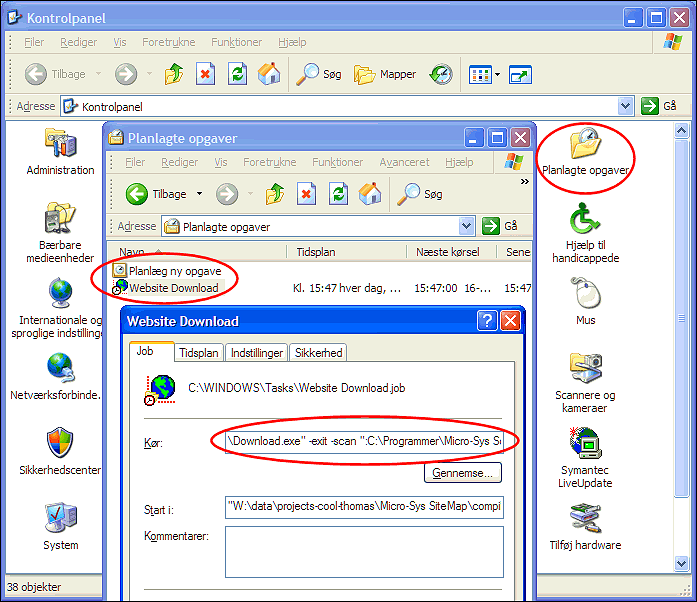
- Open Control Panel | Scheduled Tasks | Add Scheduled Task. Follow the guide.
- Open the generated website download time scheduled item to edit details, e.g. command line parameters.