|
|


Unlock Automation Batch Tools With The Registration Email
Forgot how to register and unlock our Automation Batch Tools tool? Or have an old license registration email? View our step-by-step guide with screenshots.
Note: This tutorial assumes you first do the following prerequisites:
Follow this registration procedure to unlock the software:
- Purchase our software Automation Batch Tools.
-
Download and install
the newest version of that your purchase entitles you to.
If you have a 3.x license file, you are normally entitled to use it for any version between 3.0.0 and 3.9.9.
Follow this registration procedure to unlock the software:
-
Find your registration email and extract the file attachment named
user.txt (or similar depending on version).
Note: If you can not find your license email, check your email spam and junk folders.
Store the attached license file from the email somewhere on your computer.
Please do not:- Copy and paste text in the license file.
- Rename the license file attached to email.
- Open and save the license file in a text editor.
Note: The text file simply contains a lot of numbers and letters that are not to be modified in any way.

Tip: Make you do not mix license files from multiple tools and versions.
-
Normally this step is not necessary so only do this in case of problems:
Your Windows and/or email program may be set to block text file attachments. If that is the case, you sometimes need to unblock the text file in Windows. You can do so by right mouse click on license file and click Properties.

Another possibility, while very rare, is that the system, email service or similar has zipped the attached file, so the file extension becomes .zip. In that case you will need to unzip it.
-
Start Automation Batch Tools by clicking or double-clicking the program
icon
 somewhere
on your Windows desktop or Windows menus.
somewhere
on your Windows desktop or Windows menus.
Note: If you have multiple of our tools or versions installed, double-check you started the correct program and version.
In the main top menu:

select and open the Help menu. Then, depending on the program version, click and open Unlock program or Enter Code:

-
In the registration window, select Unlock.
Then click the button Retrieve data from file:

-
Locate and select the file user.txt, user.txt, user.msd or similar from before:
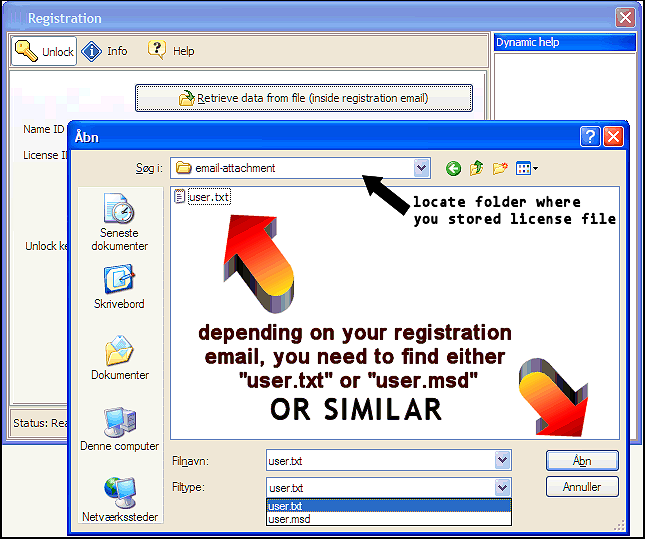
Please make sure you:- Locate and navigate the open dialog to where you saved/downloaded the license file on your computer disk.
- If you bought multiple of our programs, take care in selecting the folder that contains the correct program and version license file.
- Ensure you never rename or edit license files including when you save/download license files to disk.
Failure to do above will result in an empty open dialog where you can not select any file. If this happens to you, please double-check above things.
-
Automation Batch Tools should now request to be restarted:

-
After Automation Batch Tools has restarted, the program title should state registered.